Google broke itself! With AI! Here's how I use the Verbatim results setting for better research.

Google broke itself. Until I realized what had changed, I thought search was just irrevocably broken because the AI-sloppy results were harder to trudge through. But now that I’ve zeroed in on the primary cause, I’ve made myself a little shortcut to fix it. You can, too!
(Or you can just buy the one I made, but I swear it’ll be more fun if you make it yourself!)
Today, when you look something up, Google ignores your words and tries to guess your intent. If you’ve looked up something niche or specific that you actually know something about, you’ve probably noticed the hallucinations.
Useta be you could search using precise instructions. Using double quotes meant you were looking for an exact phrase, and using the minus sign or ‘NOT’ meant you wanted to omit some results.
I've got four fixes below. They're all Mac-centric, so I'm sorry about that if you're in PC land. If you've solved this some other way, let me know in the comments!
Fix No. 1: Manual selection, each search
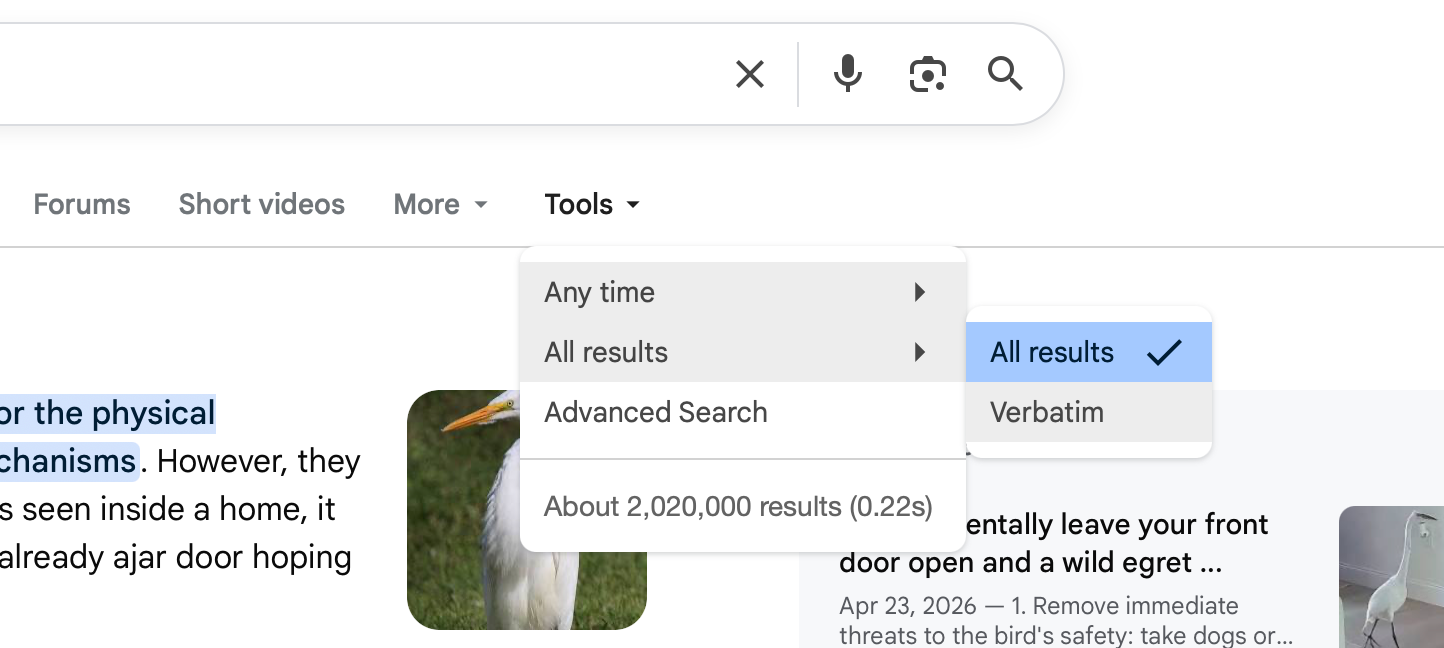
The impermanent fix? Manually, with each search, you can find the menu item 'All Results' (on desktop, it's under 'Tools') and change it to 'Verbatim.' This'll give you back 2016 Google. You'll still find AI slop in the results, but at least you're being given what you ordered, instead of what some amalgamation of eight people in your demographic and with your browsing history might have ordered.
Google will accuse you of not being a human from time to time; in most cases, you will just check the 'I'm not a robot' box and move along to your search results.
Fix No. 2: Using the Alfred app to bypass 'All Results'
This requires the helpful Mac app 'Alfred.' It skips the 'All Results' page and goes straight to the good stuff. In 'Tools', when you select 'verbatim,' this is the URL structure that gets applied:
First, I tried to set this up in TextExpander (you might use Keyboard Replacements). If we can get our search terms encoded as a URL, and plop it on the end of that structure, we'll have a swifter way into Verbatim search. In TextExpander, the URL works great, but that yourSearchGoesHere query needs to be encoded as a URL--so, no spaces.
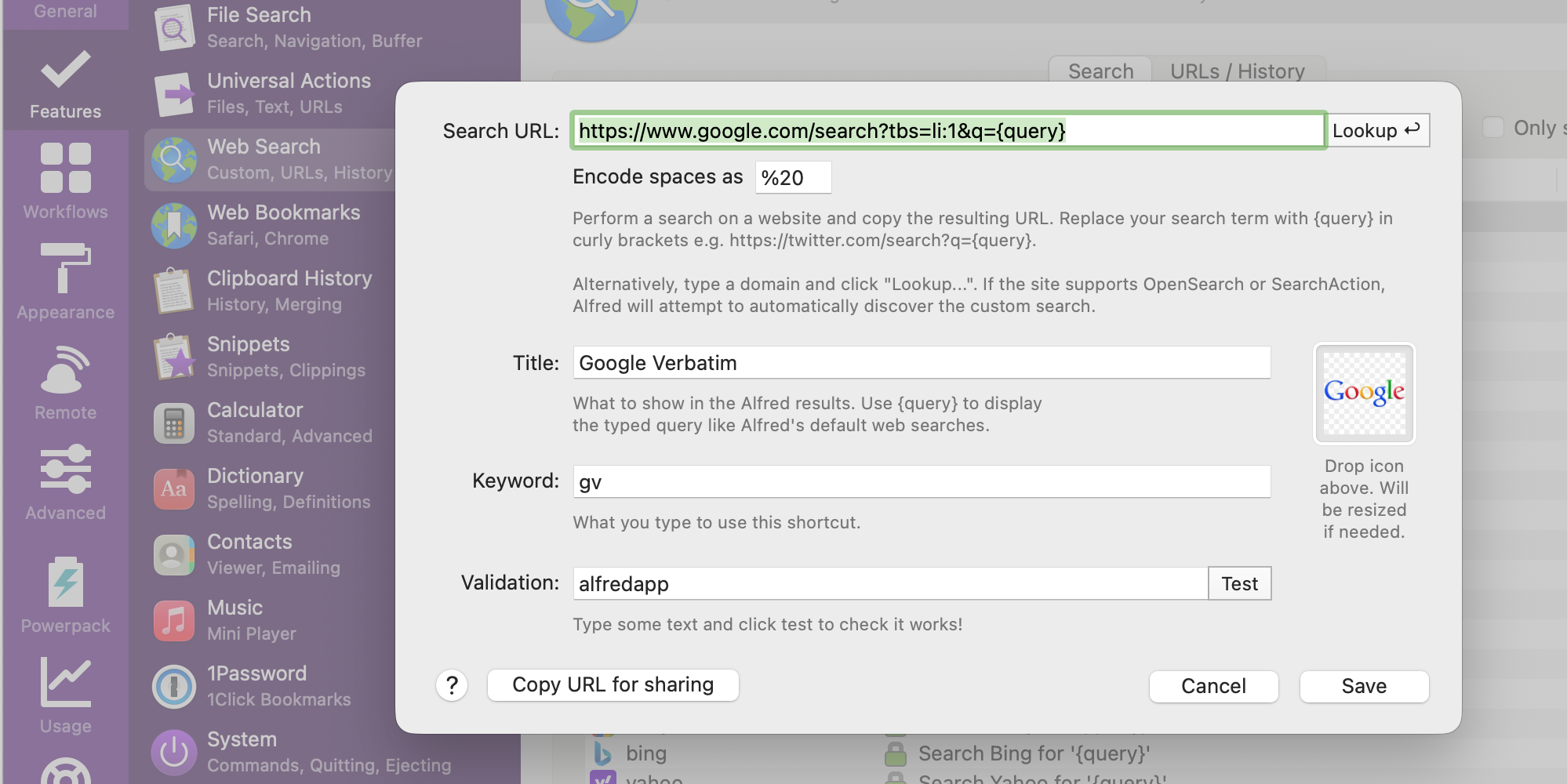
Alfred allows you to add your own custom web search shortcuts with URL encoding. On my computer, I now have a custom search set up: Command-space opens up Alfred's Spotlight search replacement, and if I type "gv" and then my search query, I go straight to the Verbatim results.
In Alfred, find Alfred Preferences. Under 'Features,' open 'Web Search.' Click 'Add Custom Search.' Use the settings pictured and typed below, and save. Like the earlier solution, Google will accuse you of being a robot from time to time, and you'll have to confirm your humanity by identifying motorcycles.
Fix No. 3: Build an Apple Shortcut for Verbatim search
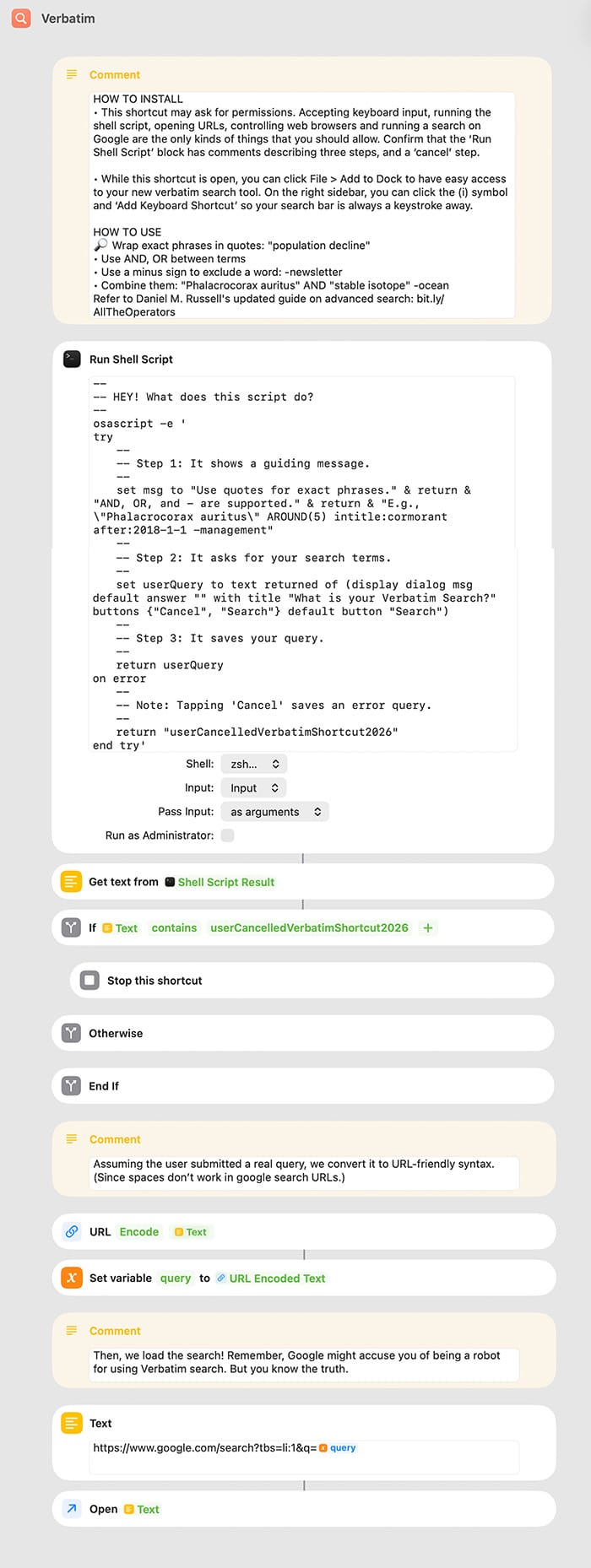
Using the 'Shortcuts' app that ships with macOS, make a new shortcut called Verbatim Search. You can add it to your dock when you're happy with it and use it whenever you need a real search engine.
Scroll to the very end to see the Apple Shortcuts layout as a screenshot. Apple Shortcuts is very visual, so this might be easier.
- Add a 'Run Shell Script' action with the code below, with the settings:
Shell: zsh. Input: input. Pass input: as arguments.
--
-- HEY! What does this script do?
--
osascript -e '
try
	--
	-- Step 1: It shows a guiding message.
	--
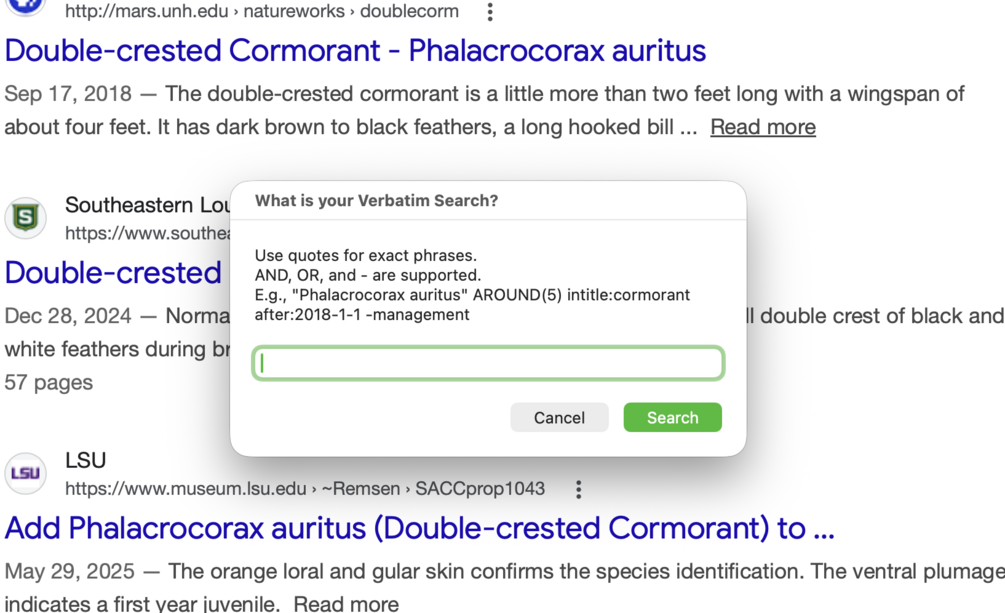
	set msg to "Use quotes for exact phrases." & return & "AND, OR, and - are supported." & return & "E.g., \"Phalacrocorax auritus\" AROUND(5) intitle:cormorant after:2018-1-1 -management"
	--
	-- Step 2: It asks for your search terms.
	--
	set userQuery to text returned of (display dialog msg default answer "" with title "What is your Verbatim Search?" buttons {"Cancel", "Search"} default button "Search")
	--
	-- Step 3: It saves your query.
	--
	return userQuery
on error
	--
	-- Note: Tapping 'Cancel' saves an error query.
	--
	return "userCancelledVerbatimShortcut2026"
end try'- Add a Get Text action, and set it to 'Shell Script Result.'
- Add an 'If' branch. Set it to: If the gotten Text contains userCancelledVerbatimShortcut2026
- In the 'If' fork, add a 'Stop Shortcut' action.
- You can leave or delete the 'Otherwise' fork.
- Add a URL Encode action, and set it to encode the gotten Text.
- Add a Set Variable action, and set variable "query" to be the URL Encoded Text.
- Add a Text Block. Type in "https://www.google.com/search?tbs=li:1&q=" and then start to type "query" until a popup confirming it recognizes the variable appears. Click that offering.
- Finally, add an Open URLs action. Set it to open this new Text Block.
- In the Shortcuts menu, click File > Add to Dock
You did it!
Fix No. 4: Give me a dollar
Or finally, just buy the Apple Shortcut for $0.99 from my Gumroad account: Verbatim Shortcut. You'll still need to deal with installing it, clicking File > add to Dock, and dealing with Google telling you you're a robot. But you know the truth.